Technology | Nov 13, 2026
EasyBuilder X: Next-Gen Software with Object-Oriented Design & Custom Models
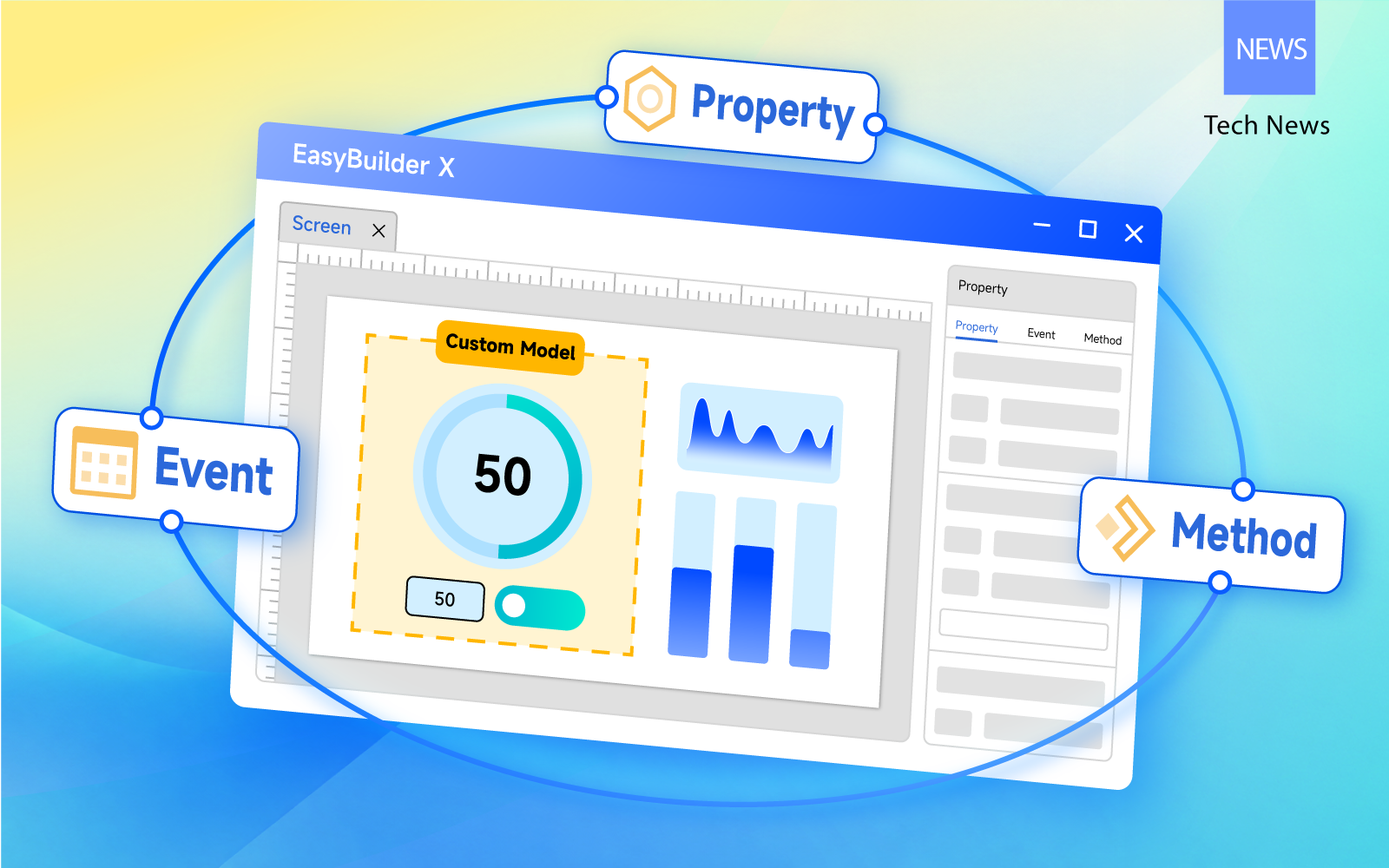
With over 30 years of experience in HMI hardware and software, Weintek continues to refine its products and development tools. This year, Weintek launched EasyBuilder X, its next-generation HMI development software, featuring an object-oriented architecture and Custom Models.
These features enable engineers to develop HMI projects more efficiently through a modular approach. Frequently used widgets can be combined into reusable templates and quickly applied across different screens, accelerating development and simplifying project maintenance.
This article introduces the core concepts of both features and demonstrates how to use them in practice.
Object-Oriented Architecture: Connecting Data and Actions
In traditional HMI development, objects primarily operate through graphical displays, register read/write operations, and predefined actions. However, applications involving multi-step control often require macros combined with Combo Buttons to implement complex trigger conditions.
To simplify logic design, EasyBuilder X introduces an object-oriented approach that treats widgets, screens, recipes, and even alarms as individual objects. Depending on their functions, these objects can have Properties, Events, and Methods. Properties connect data, Events respond to interactions, and Methods execute functions.
- Properties
Properties define an object's data and appearance, such as its value, state, text, availability, color, size, and position. By clicking the arrow icon in the Property tab, users can bind properties to variables. When a variable's value changes, the object's appearance or data updates accordingly, creating dynamic effects without writing macros.
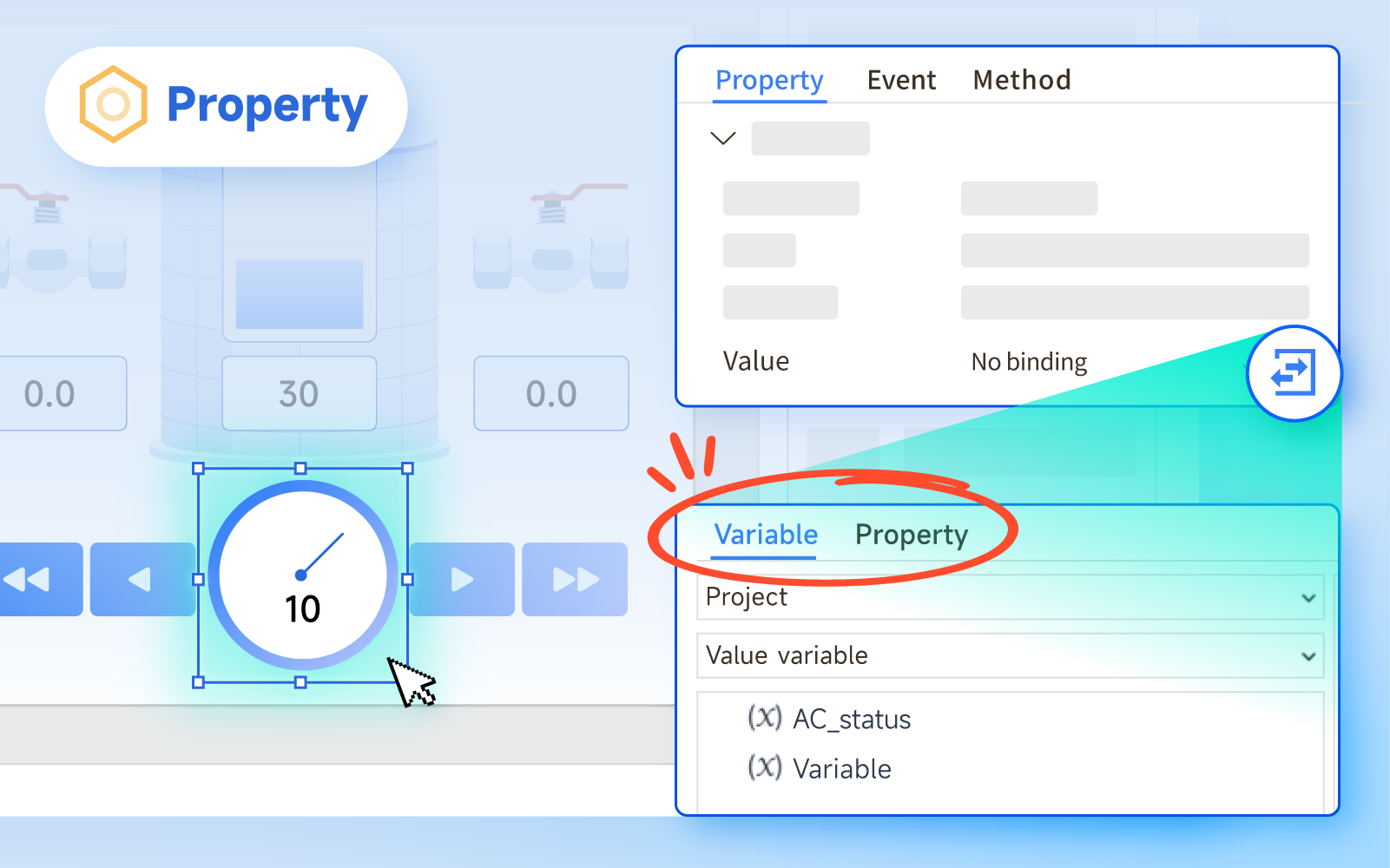
Select a widget and click the arrow icon to create a binding.
Beyond variable binding, EasyBuilder X also supports property-to-property binding, allowing widgets to interact directly. For example, the Value property of a Numeric widget can be bound to the Read Value property of a Bar Graph widget. When a user enters 30, the Bar Graph displays a water level of 30%. Changing the value to 80 raises the displayed level to 80%. This eliminates the need for intermediate variables, simplifying screen interactions
- Events
Events serve as an object's notification mechanism. When an object's state changes, an event is triggered. The available events depend on each widget's interaction capabilities. For example, a Button widget supports events such as Pressed, Released, Clicked, and Held. For a complete list of supported events, refer to Section 6.6.1 of the user manual.
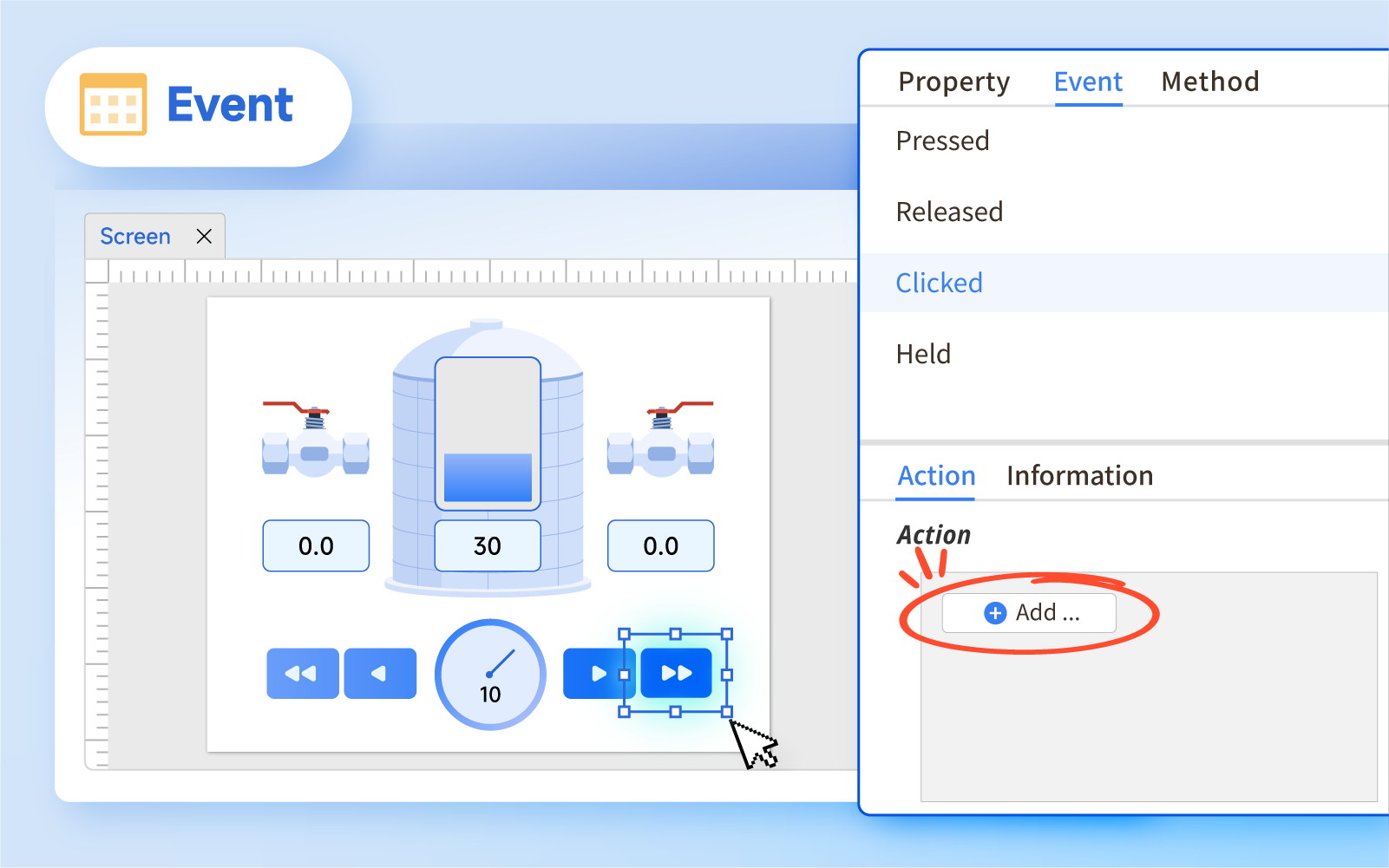
Select an event and add actions.
After adding an event, users can add actions below, including “Add if condition”, “Add while loop”, “Wait”, and “Delay”. Engineers can visually arrange these actions like building blocks directly in the Event tab, making control flows easier to configure and maintain.
- Methods
Methods are functions that an object can execute. While Events determine when an action occurs, Methods define what action is performed. When an event is triggered, users can call a target object's Method within the event's action flow. Like Events, the available Methods depend on each widget's capabilities. For more information, refer to Section 6.5.1 of the user manual.
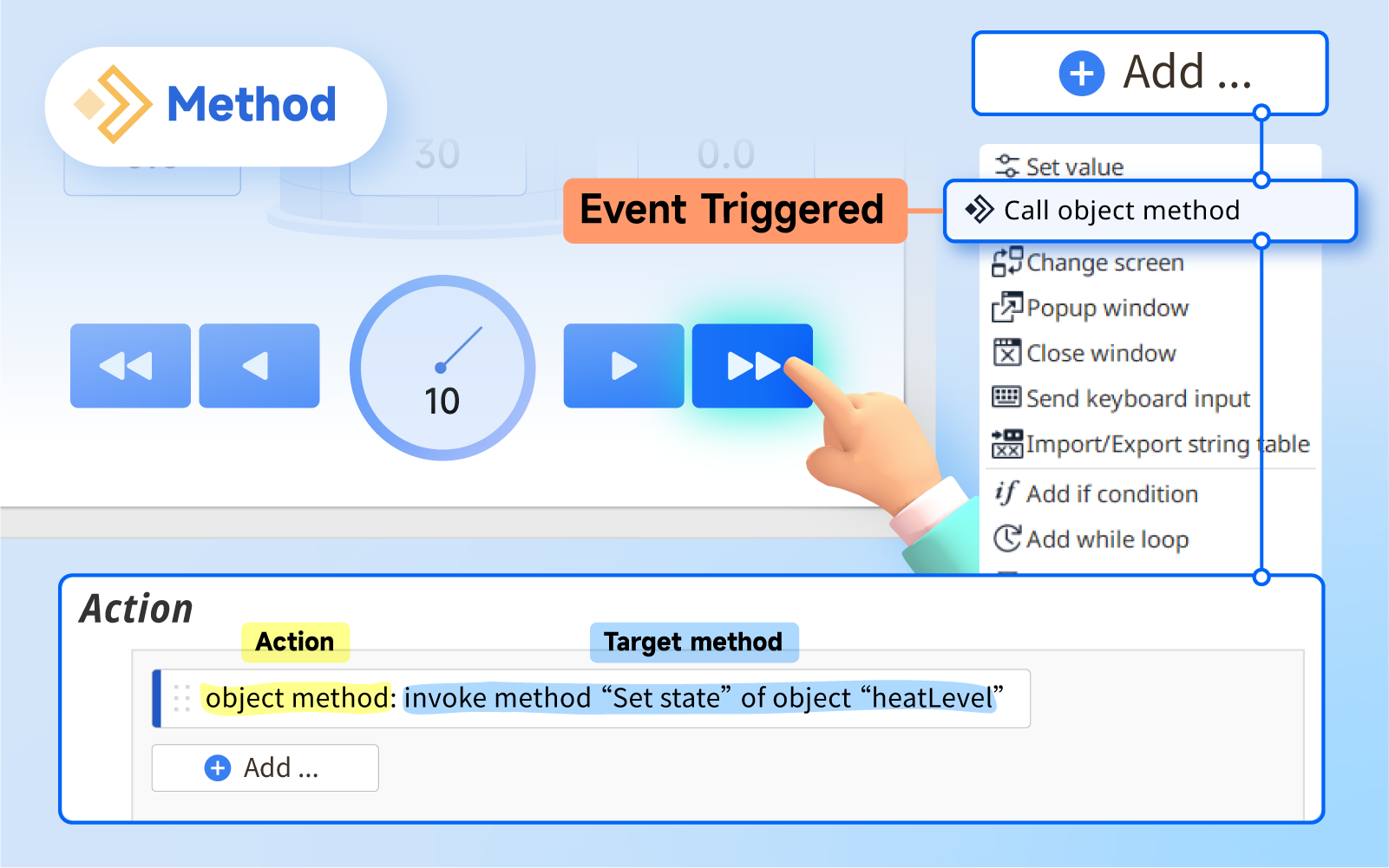
Add an action to call an object Method.
Custom Models: Make the Most of Your Previous Designs
Developing HMI projects for large-scale production lines often involves reusing similar interfaces, such as those for valve control, temperature monitoring, and parameter settings.
In EasyBuilder Pro, users can combine visual elements using the basic Template feature. EasyBuilder X takes this further with Custom Models, which package widgets and their interaction logic into reusable design units, offering three key advantages:
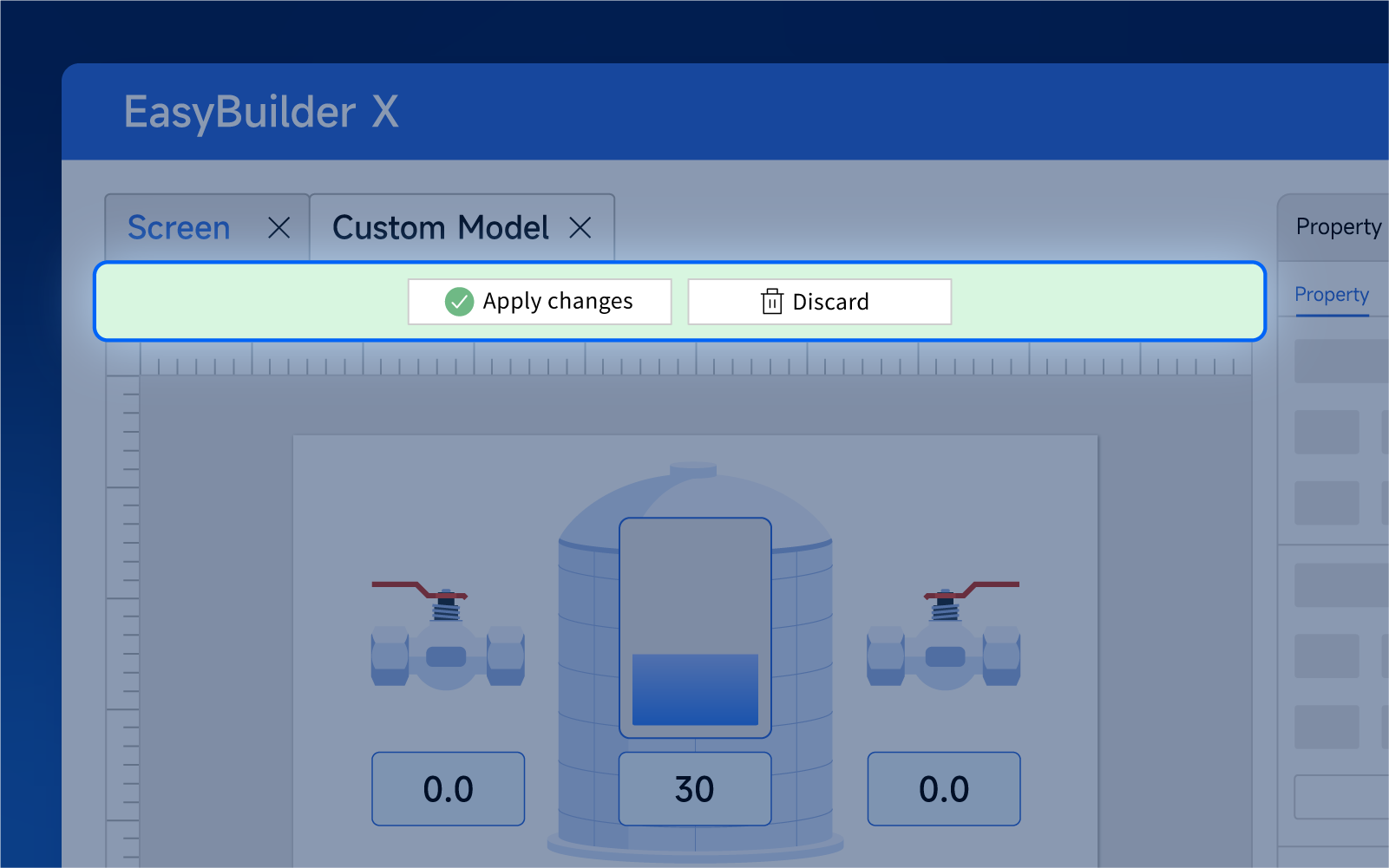
Apply Custom Models with a single click.
1. One Design for Multiple Uses
Combine multiple widgets into a single Custom Model, then simply drag and drop it onto any design screen for immediate use.
2. Project-Wide Updates
Modify a Custom Model in edit mode and click Apply Changes to update all instances of that model throughout the project.
3. Streamlined Reuse with UDT
Package widget bindings, dynamic effects, and calculation logic into a Custom Model. When applying the Custom Model to devices that share the same User-Defined Type (UDT), simply link its variables to the corresponding device data. This reduces repetitive configuration and helps maintain consistent data mapping and screen designs across devices.
Custom Models also allow users to add Properties, Events, and Methods in the Property panel on the right, providing greater configuration flexibility for different applications.
With these two features, logic design becomes more efficient when developing new HMI projects or maintaining existing ones, making it easier to modify control flows, add equipment, and adapt to changing application requirements.
Download EasyBuilder X for free and experience next-generation HMI development.